Script to Video AI Generator: How to Go From a Draft to a Video
A practical workflow for writing the script first, planning the visuals, and choosing the right downstream video tool.

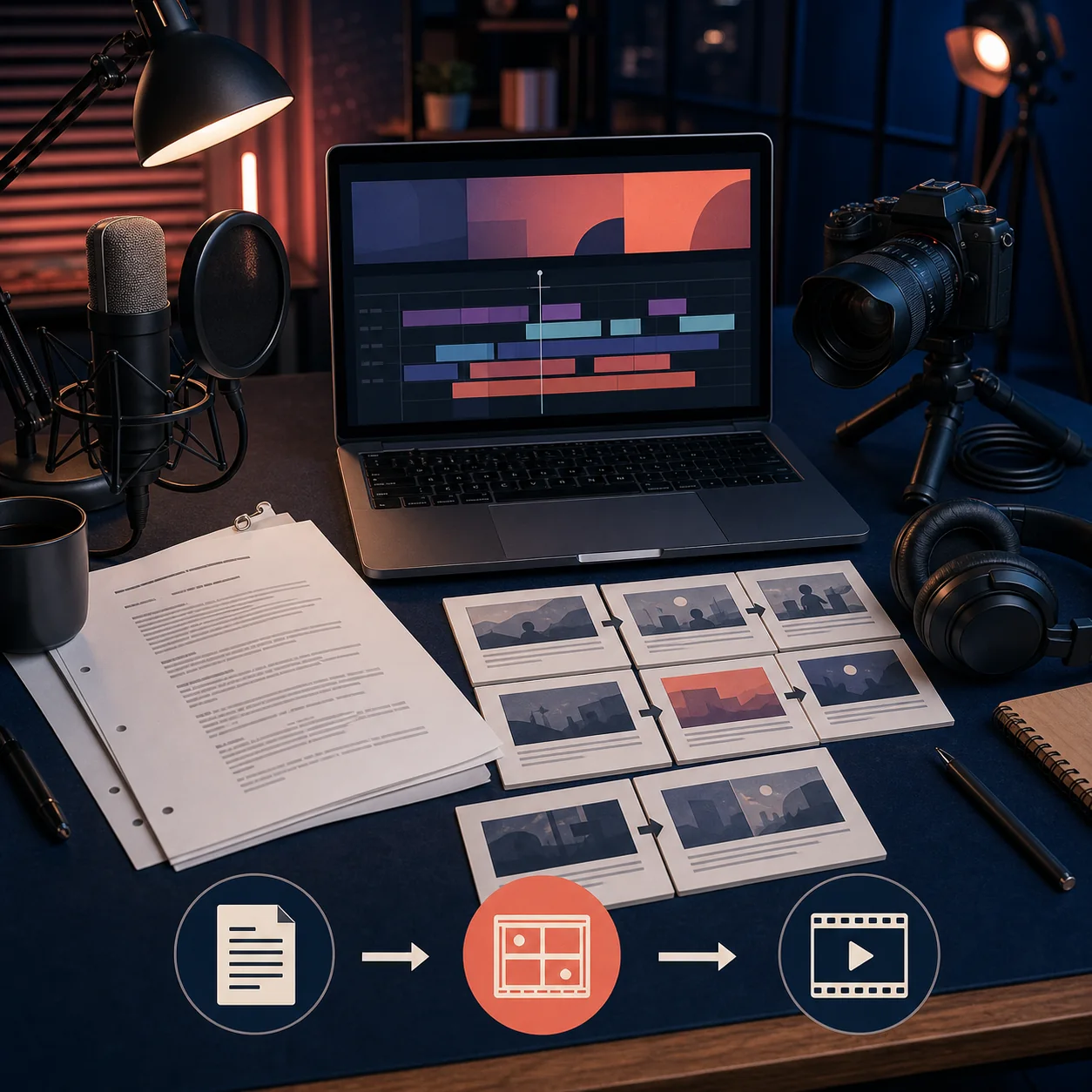
A script to video AI generator can mean two very different things. Some tools turn a written script into scenes, voice, captions, or a rough timeline. Others help you write the script but do not create the finished video. Knowing the difference prevents a common mistake: choosing a tool for a promise it cannot actually fulfill.
The most reliable workflow is still sequential. Start with a brief, create a script you can edit, mark the visual moments, then move the approved draft into a video tool. This guide explains that process and shows where ScriptGenerator.org fits: the script stage, not video rendering or transcript extraction.
Quick answer
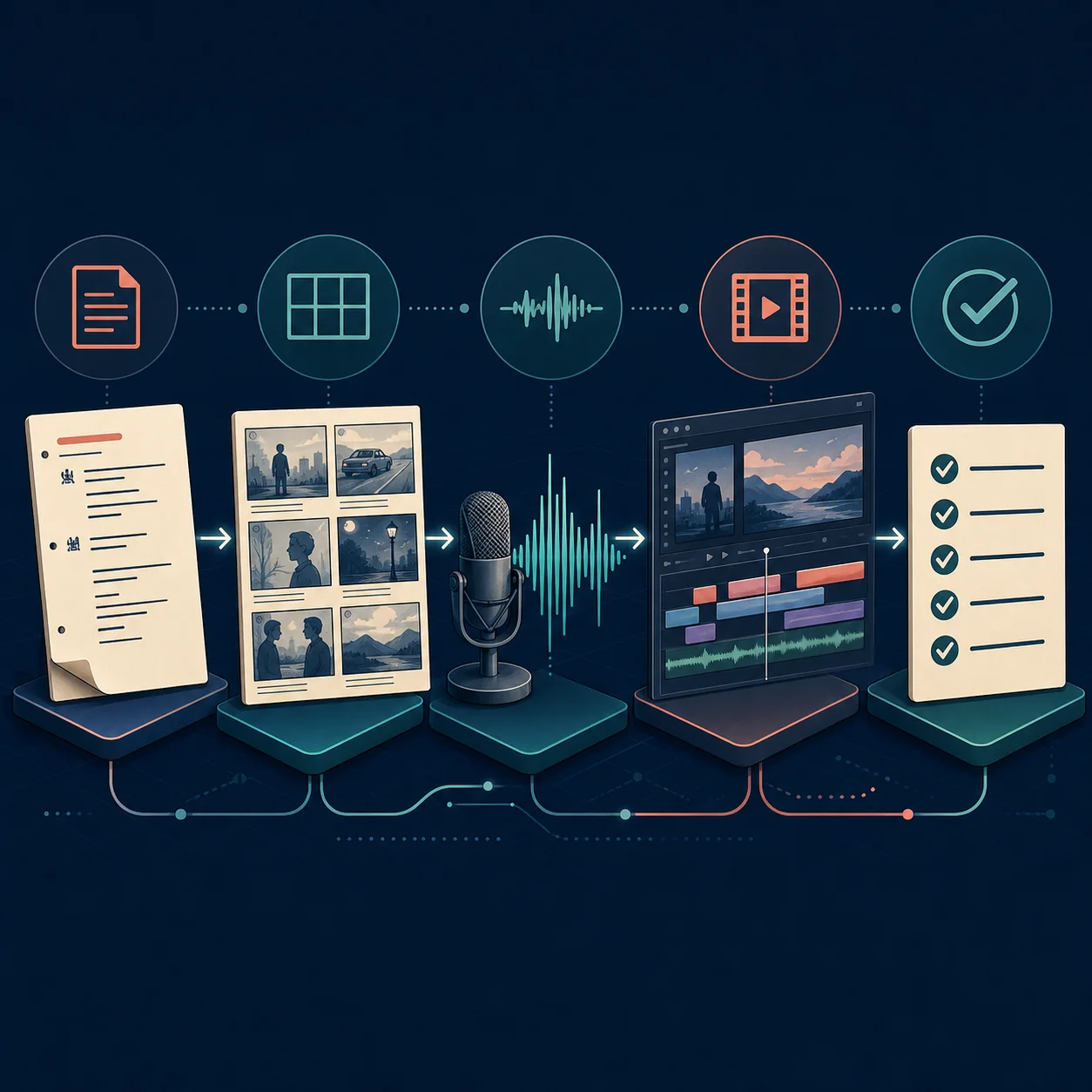
Use a script to video AI generator workflow in five stages: define the audience and promise, generate or edit the script, turn lines into visual beats, assemble the video in a suitable tool, and review every scene, voice line, caption, and factual claim.
If you need the first stage, create a focused script draft with the topic, audience, duration, tone, and call to action before opening a video editor. Create a script draft
What to decide before turning a script into a video
A good result depends less on a long feature list and more on whether the tool matches the job your script is trying to do.
The video promise
Write one sentence describing what the viewer will understand, decide, or do by the end. If the promise is vague, the visuals will drift too.
The audience and format
A six-minute tutorial, a faceless explainer, a product demo, and a Short need different pacing, framing, and visual density.
The visual evidence
Mark which lines need a screen recording, diagram, product shot, b-roll, chart, or simply a speaker on camera. Do not ask visuals to repeat every spoken word.
The voice and delivery
Decide whether the final piece needs a natural voice, a synthetic voice, captions, multiple speakers, or a human recording that will be edited later.
The editing controls
Look for control over scene order, timing, captions, media replacement, brand assets, and exports. A fast draft is less useful if every correction requires starting over.
The review boundary
Set aside time to verify facts, permissions, pronunciation, visual accuracy, and whether the final cut actually keeps the original promise.
Script and video tools by workflow
These categories solve different parts of the production chain. Treat the table as a starting point, then check the current product limits before building a large project.
| Option | Best for | Strength | Tradeoff | Official page |
|---|---|---|---|---|
| ScriptGenerator.org | Writing the first script draft | A focused path from topic and audience brief to a structured script | You still need to plan scenes and use a separate video workflow | Script generator |
| InVideo AI | Script-to-video production workflows | Useful when narration, scenes, stock media, and editing belong in one production flow | A full video workflow can be unnecessary when you only need words | InVideo |
| VEED | Browser-based video editing | A practical place to combine a script with captions, media, voice, and timeline edits | The final quality still depends on your source media and review | VEED |
| Canva | Template-led visual content | Helpful when the video needs simple branded layouts and reusable visual assets | Templates can make different videos feel too similar without editorial choices | Canva |
| Kapwing | Lightweight team editing | Useful for turning a prepared script into a shareable edit with captions and media | A polished result still needs a clear shot list and human timing decisions | Kapwing |
| A general AI assistant | Angles, rewrites, and shot-list ideas | Flexible conversation for testing hooks, structure, and alternate explanations | It may not provide a complete production timeline or reliable visual assets | AI assistant |
The right sequence is often more important than the brand. Write and review the script first, then choose a video tool based on voice, visuals, editing control, and export needs.
Which workflow fits your video
Start with the production problem you need to finish, not with the tool that has the longest feature page.
| Scenario | Priority | Starting workflow | Review question |
|---|---|---|---|
| Tutorial or how-to | Clear steps and proof | Script draft → screen plan → editor | Does every step show what the viewer should see or do? |
| Faceless explainer | Narration and useful b-roll | Script draft → shot list → voice and visual assembly | Do the visuals add information instead of repeating the narration? |
| Product demo | Specific claims and evidence | Brief → script → real product footage → edit | Can every important claim be demonstrated or verified? |
| Short-form video | One promise and fast payoff | Hook draft → beat list → vertical edit | Does the viewer understand the point in the opening seconds? |
| Narrated story | Pacing, voice, and scene continuity | Scene script → storyboard → voice and timeline | Do the scene changes support the emotional turn of the script? |
A better brief for script-to-video AI
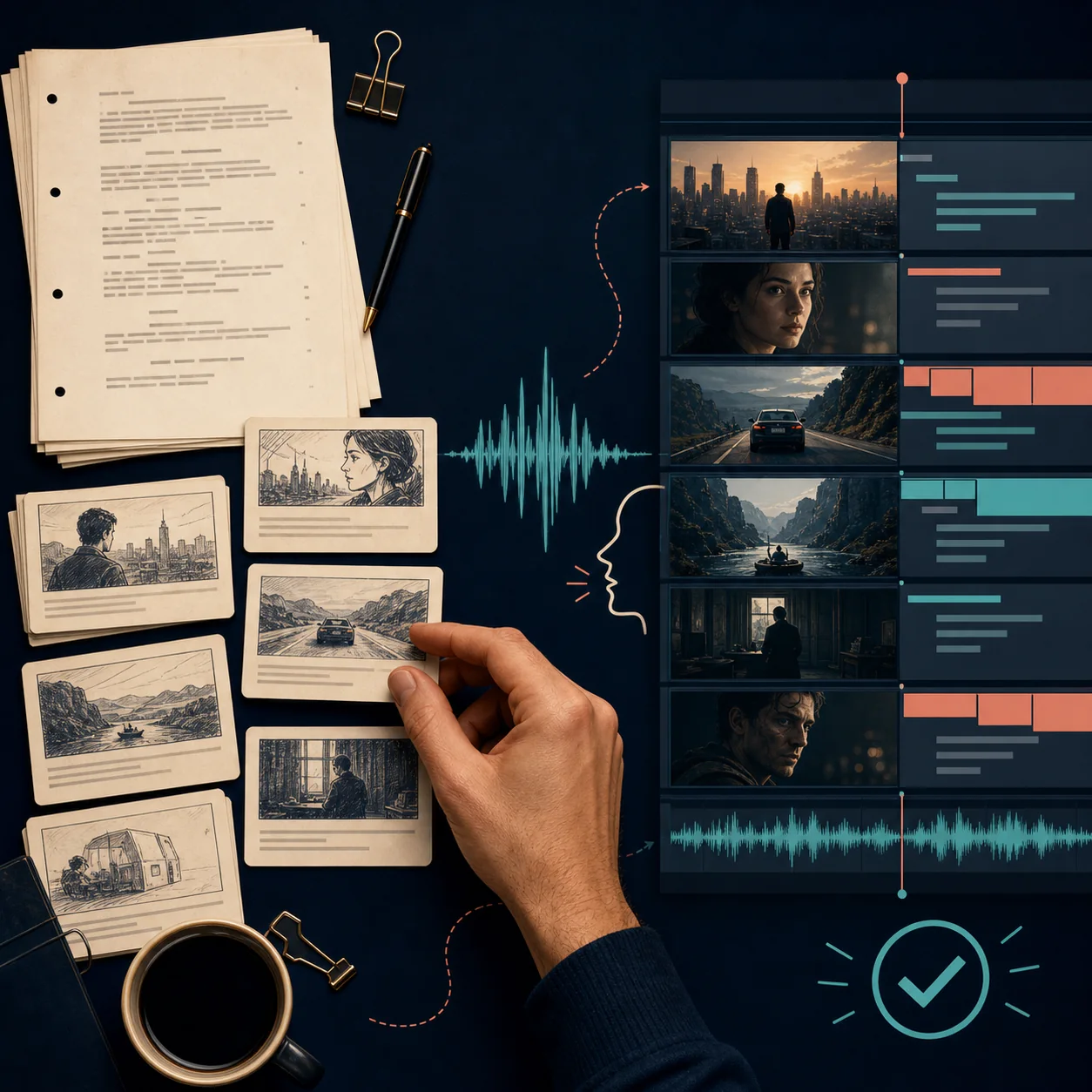
The request “turn this into a video” leaves too many production choices open. Give the model or editor the constraints that make your project recognizable.
- Name the viewer. Say who is watching, what they already know, and what would make them leave.
- State one promise. Describe the result in one sentence. Do not mix a tutorial, review, story, and news update in one short video.
- Fix the format. Specify long-form video, Short, product demo, explainer, or ad, plus the approximate duration and aspect ratio.
- Mark visual beats. Ask for a scene idea, on-screen proof, or b-roll suggestion beside each important spoken section.
- Define the voice. Choose practical, direct, warm, funny, skeptical, or instructional language and say which words should remain natural when spoken aloud.
- Require uncertainty. Ask the system to flag assumptions and facts that need checking instead of filling gaps with confident-sounding details.
Example brief
Create a 60-second vertical product explainer for first-time creators. The viewer wants to understand one workflow, not every feature. Start with the planning mistake, show three visual steps, use a calm practical voice, keep each scene under eight seconds, mark any claim that needs verification, and finish with one clear next action.
What to review before export
AI can create options quickly, but the final responsibility stays with the person publishing the video. Read the script aloud and watch the cut with the sound off once.
- The promise is honest. The opening does not promise an outcome that the scenes fail to demonstrate.
- The voice matches the edit. Pauses, emphasis, pronunciation, captions, and scene changes feel intentional rather than automatically stitched together.
- The visuals are allowed to be different. The video adds proof, context, or emotion instead of showing a generic clip for every line.
- Facts and rights are checked. You verify product claims, numbers, names, images, music, voices, and any material that may need permission.
- The ending has one job. The final call to action is relevant to the promise and does not compete with several unrelated requests.
Questions about script to video AI generators
Treat script-to-video as a production workflow
A script to video AI generator is most useful when it shortens the distance between a clear idea and a reviewable first cut. It does not remove the need for an audience promise, a shot plan, or a human decision about what deserves to appear on screen.
Start with one topic, one format, one duration, and one call to action. Create the script, mark the visual beats, test the downstream video workflow, and keep the version that communicates more clearly with less cleanup.
Related resources
Official product pages to check
- Official product site checked as an example of a broader AI video production workflow. InVideo
- Official product site checked as an example of browser-based video editing and caption workflows. VEED
- Official page checked as an example of template-led visual production. Canva AI video
- Official page checked as an example of lightweight team editing and content workflows. Kapwing AI
Last updated: August 22, 2026